
We may earn a commission from links on this page.
If you own an Android phone, it’s more likely to be a Samsung Galaxy handset than anything else—Samsung is comfortably ahead of the likes of Google, Xiaomi, and others when it comes to global market share. And if you’ve got a Galaxy, you’ve got access to a selection of features you won’t find on other Android devices.
Samsung has added a bunch of its own ideas and settings on top of Google’s mobile operating system, and if you want to make the most of your Galaxy, you need to know about them. Here are some of the best ways to hack your Samsung Galaxy experience.
Automate your life with Routines
Why keep changing the settings on your phone if your phone can do it for you? Routines is a Galaxy utility that will wait for certain triggers and then take certain actions—one example would be turning on Do Not Disturb mode whenever you reach the office, then turning it off again when you leave.
Head to Settings then pick Modes and Routines. The first screen is Modes—specific notification settings for sleeping, working out, gaming, and so on—but if you switch to the Routines tab you can start adding some new automations.
The available triggers include times, places, specific wifi networks (like home or the office), connected devices (such as headphones), and events (like incoming notifications). Actions to take cover everything from specific Do Not Disturb modes and display settings to tasks inside apps (such as creating calendar events) and accessibility options.
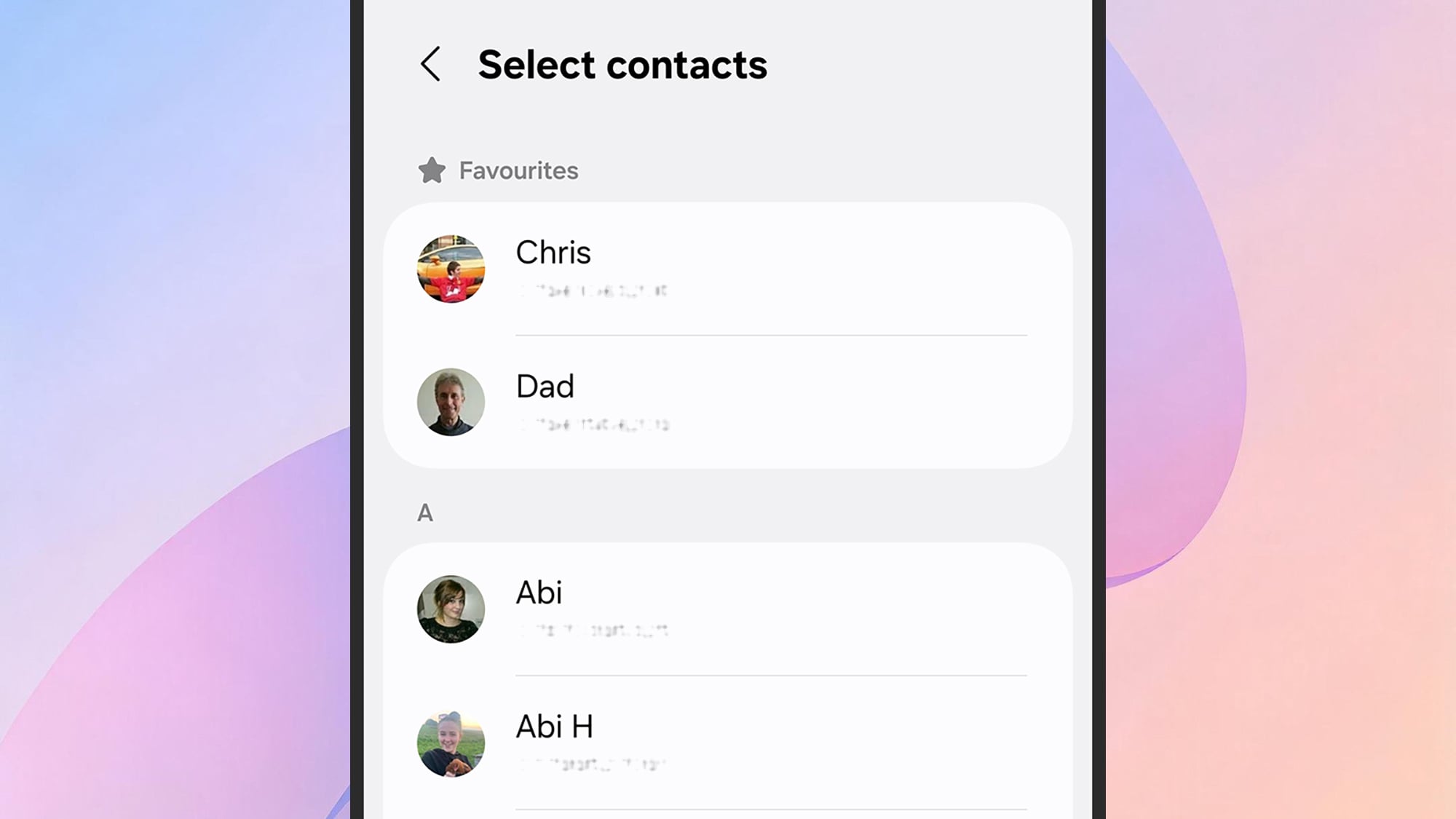
Choose your favorite contacts for the Edge Panel.
Credit: Lifehacker
If you haven’t explored the Edge Panel feature much, you might not have realized just how capable it is. It’s not just for shortcuts to apps—you can also add shortcuts to your favorite contacts, which is potentially even more useful.
From Settings, select Display > Edge Panels, then activate the feature via the toggle switch and tap Panels. Make sure the People panel is selected, and use the Edit button to select specific contacts. Tap the three dots then Reorder to put the contacts panel first.
There are plenty more Edge Panel customization options on these screens as well. You can choose which side of the screen it shows up on and how transparent it is, for example.
Create an ambient photo wallpaper
Samsung Galaxy phones can take one of your photos, apply it as the wallpaper on your device, and then dynamically adjust it based on the time of day and weather conditions—dimming the backdrop and covering it with raindrops if there’s a storm at night, for instance.
You can configure this from Settings by tapping Wallpaper and style, then Change wallpapers > Create with AI > Weather. You’ll need to pick an image and allow location access, and the new wallpaper will be applied to the lock screen. To make further changes to the lock screen, press and hold on it while your handset is locked. You’re able to then adjust elements like the shortcuts and widgets on the display, as well as the wallpaper.
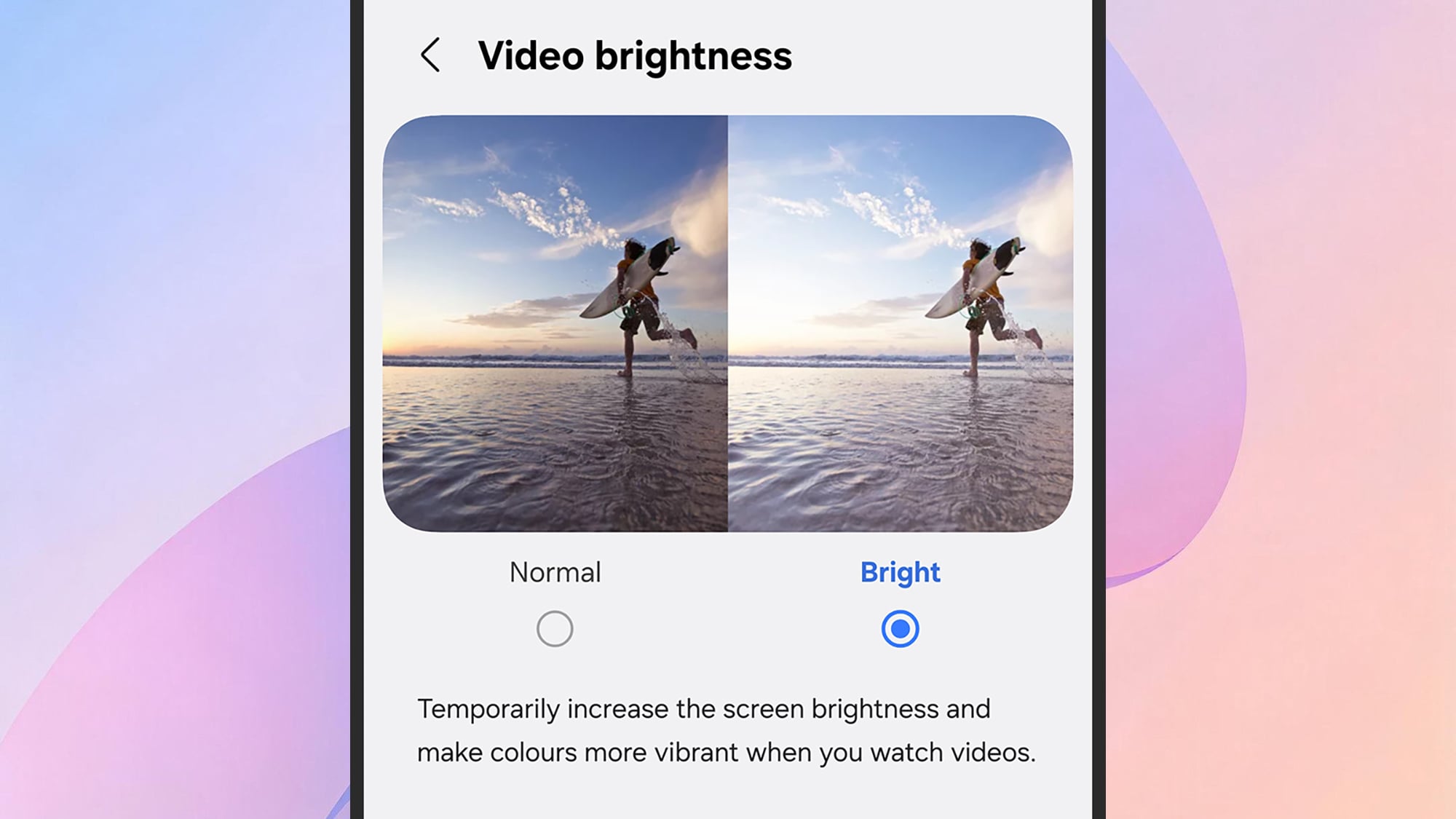
Your video apps can benefit from an extra boost.
Credit: Lifehacker
Galaxy phones come with a special brightness and vibrancy boost for watching video content, whether it’s something you’ve saved locally or something you’re streaming. From Settings, tap Advanced features > Video brightness, select Bright, and then use the toggle switches to select the apps it applies to.
Add light effects to notifications
Besides beeps and vibrations, notifications on Galaxy handsets can have some cool lighting effects associated with them as well. It’s a fun way to make sure you see your incoming alerts, and it also can give you a quick idea of what the notifications are for.
Open Settings, then select Notifications > Notification pop-up style > Add lighting effect. You’ve got a choice of styles and colors to choose from, and you can set the duration for the lighting effect. For the lighting effects where you can choose a color, you can change that color based on matching keywords by selecting Lighting effect color by keyword. You could put in a contact’s name and assign them a special color, for example.
Change what the side button does
This one is simple but useful: You can change what a double tap on the side button does by opening Settings and choosing Advanced features > Side button. You can have it launch the camera, the flashlight, or a specific app, for example. On the same screen, you can also adjust what a long press on the side button does—you can have it either launch one of the digital assistants installed on the phone (like Bixby or Gemini) or bring up the power menu.
What do you think so far?
Switch to one-handed mode
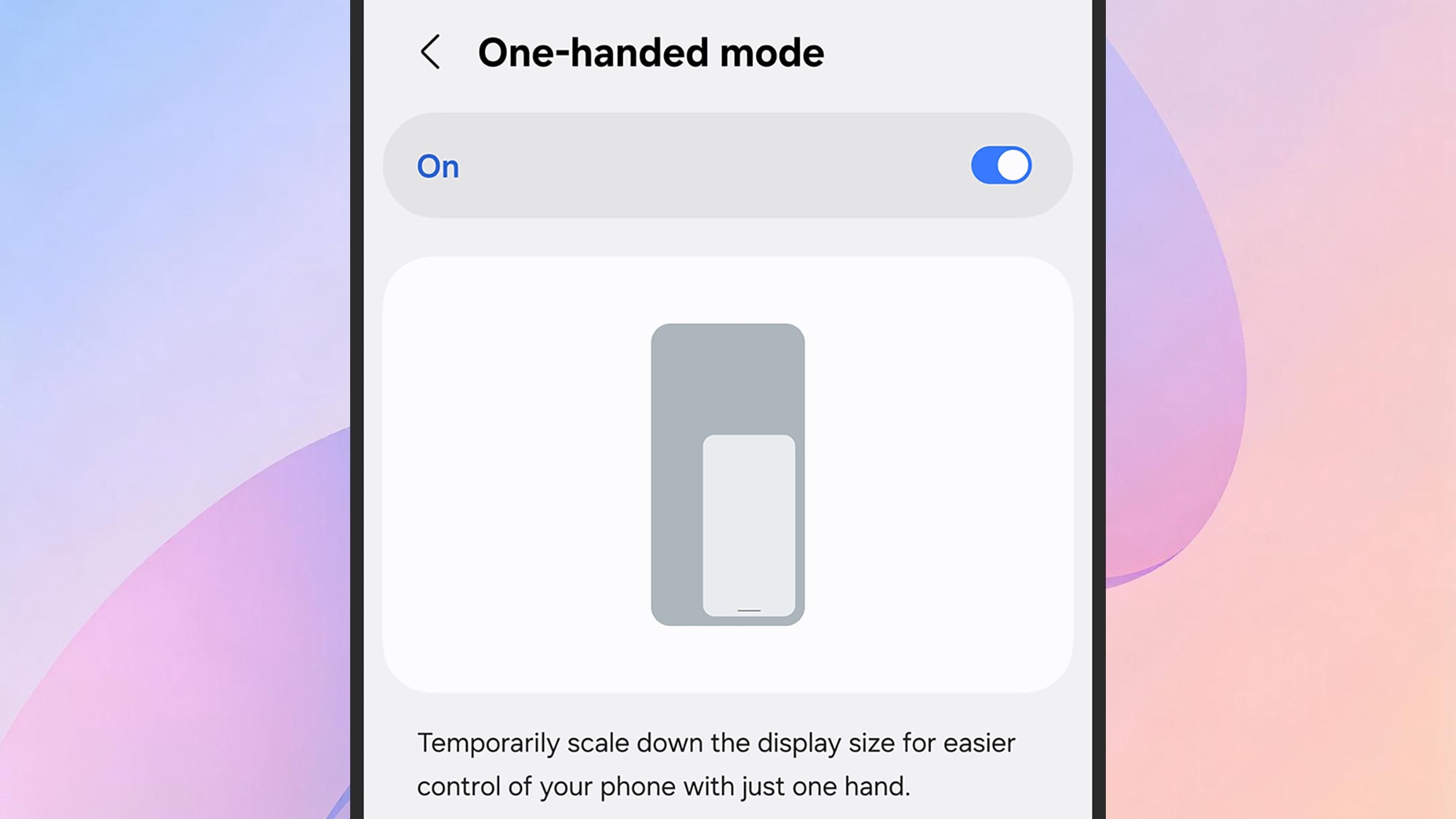
There’s a one-handed mode available in the interface.
Credit: Lifehacker
There are likely to be multiple situations where you’re trying to use your Samsung phone with one hand rather than two (walking the dog, carrying groceries), and that’s where one-handed mode comes in.
It’s enabled from Settings via Advanced features > One-handed mode, and you can then activate it by swiping down at the bottom of the screen to get a smaller, more reachable interface. Repeat the gesture again to go back to normal.
Multitask better with two apps on screen together
Multi Windows is another useful feature available on Samsung Galaxy phones—though it’s likely to be most useful on the biggest phone displays. It lets you get two apps on screen at the same time, so you can read messages while watching a video, or whatever you want.
Swipe up from the bottom of the screen to the center to bring up the carousel of recently used apps, then swipe to your first app. Tap the app icon at the top, then Open in split screen view. You’ll then be asked to choose another app to pair with it.
Adjust the screen resolution
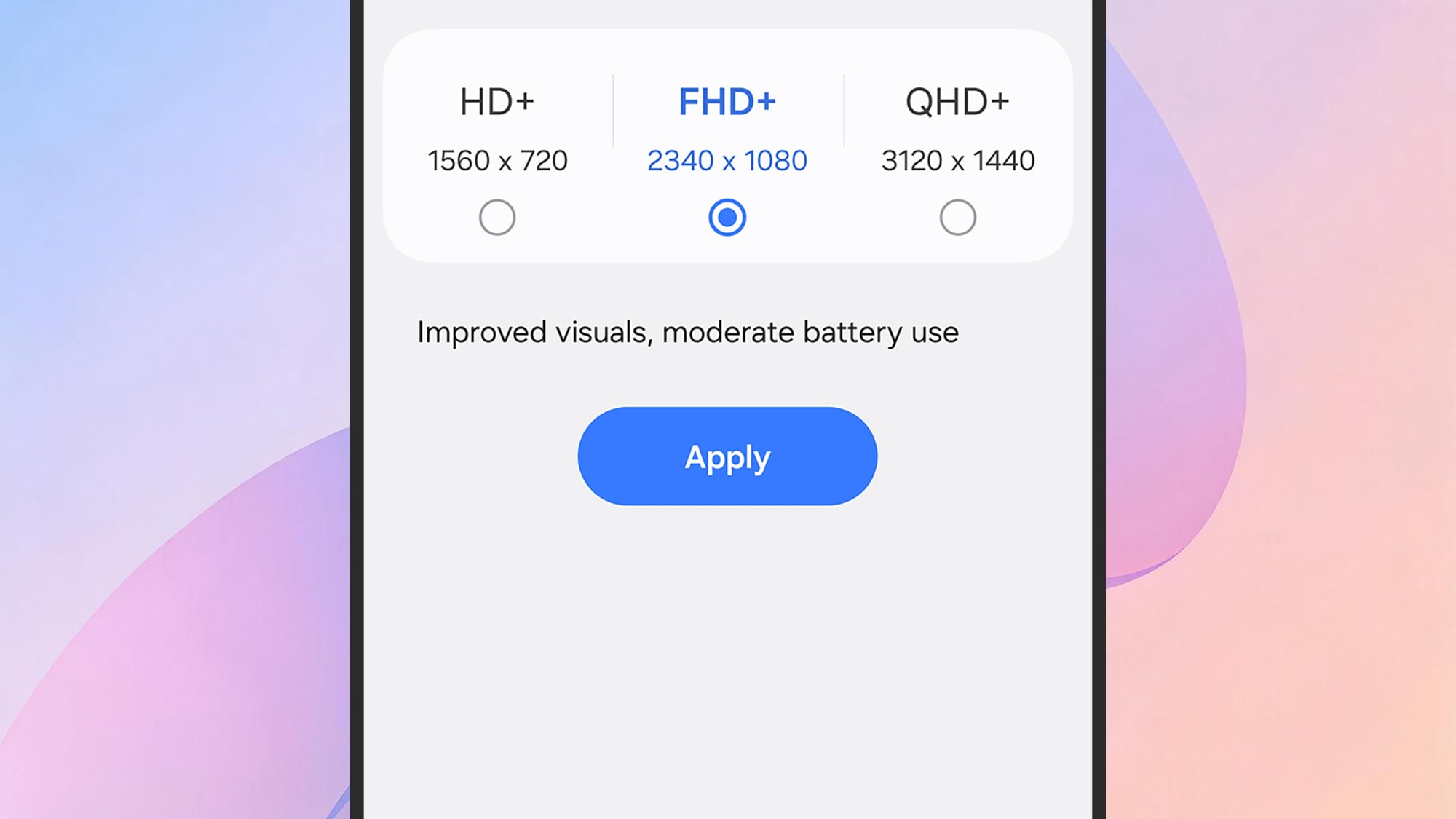
Changing the screen resolution on a Galaxy phone.
Credit: Lifehacker
One of the lesser-known options on Samsung Galaxy phones is the ability to change the pixel resolution of the screen—a higher resolution means sharper text and graphics, though it will also drain your phone battery faster too, so bear that in mind.
You can configure this by selecting Display > Screen resolution from Settings. The options you’ll see will depend on the specific model of handset you’re using, but above the options you can see a preview of the difference each one will make.
Check the wifi coverage around your home
It’s a little odd that Samsung has hidden this menu away, but it’s a suite of wifi diagnostics tools that you can use to check signal strength around your home, troubleshoot network problems, and check data usage. To enable the menu, which is called Connectivity Labs, open Settings and pick Connections > Wi-Fi. Tap the three dots (top right), then choose Intelligent Wi-Fi, and tap Intelligent Wi-Fi at the bottom of the screen seven times to add the extra menu.
Open Connectivity Labs and you’ll see there are a host of options and features to work through. One of the most useful is the Home Wi-Fi inspection feature: Select this and your phone will guide you in measuring wifi signal strength around your home.