
We may earn a commission from links on this page.
Sony’s PlayStation 5 is a powerful machine, but if you just plugged it right into your TV and never bothered to go into the settings, there’s a chance you’re not seeing its full potential. From enabling 120 fps gameplay to customizing your Welcome hub, there’s a lot you can do with the PS5, if you’re willing to tinker a little bit. Here are the 10 best tips and tricks to getting the most out of Sony’s current gaming console.
Enable 120Hz and 4K on your PS5
Just because you bought a fancy new PS5 doesn’t automatically mean you’re getting the best performance out of it possible. If you have a 4K TV or a monitor that can support a 120Hz refresh rate or above, you’ll want to double check your video output settings to ensure your console is taking advantage of it.
First, before even turning on your device, make sure it’s connected via an HDMI 2.1 cable. This is necessary for frame rates above 60 at 4K. Your PS5 should have come with one, and you’ll know if it’s the right one if it has a boxy rectangle on either side of the cable. Also ensure that you’re plugging your cable into a port that can accept HDMI 2.1, which will look different based on your screen. On my LG C1 TV, this port says “4K @ 120Hz” above it.
Next, while your console may detect what your screen can handle and adjust its settings accordingly, head to Settings > Screen and Video to manually check them and make some adjustments that need some human fine tuning. I like to leave most of the settings on this page to Automatic to allow the PS5 to pick the best choices for the wide variety of content it can play, but you can select any of the settings on this page to see your options and force an output. If you don’t see 4K (labeled as 2160p) or 120Hz as options here, this is your sign you might need to swap your HDMI cable.
To see what settings your PS5 is using at any particular moment, select “Current Video Output Signal” at the top of this page to check your work. While I mostly like to rely on the PS5’s Automatic settings, one specific change you might want to make would be applying VRR to unsupported games, which could improve fidelity at the cost of introducing instability. If you scroll down far enough on this page, you can also adjust when your console displays HDR, and go through an HDR setup wizard by selecting “Adjust HDR.”
You can also customize your console’s display area by selecting Screen from the sidebar on the left, which is handy if your display has an unusual aspect ratio. While you’re here, you can adjust how long you need to be away from your controller before the console dims your screen.
Finally, if you have a PS5 Pro, you can up the graphics quality on some supported PS4 games. This is under Settings > Screen and Video > Video Output > Enhance Image Quality for PS4 games.
Mute the PS5’s startup beep
Let’s say you’re having trouble sleeping, and instead of rolling around in bed, you decide to sneak out to the PS5 for a secret gaming session. Except, uh-oh, the nasty beep that the console plays at startup alerts your partner, and now you have some explaining to do. To keep this from happening, let’s turn off that beep ahead of time.
Under Settings > System > Beep and Light, toggle on Mute Beep Sound to get rid of the sound your PS5 plays at startup. Or, if you just want to make it quieter, you can do that under Volume.
While you’re here, you can also customize how bright the LED strip on the front of the console gets, under Power indicator > Brightness. Unfortunately, there isn’t a way to turn it off entirely.
Credit: Sony
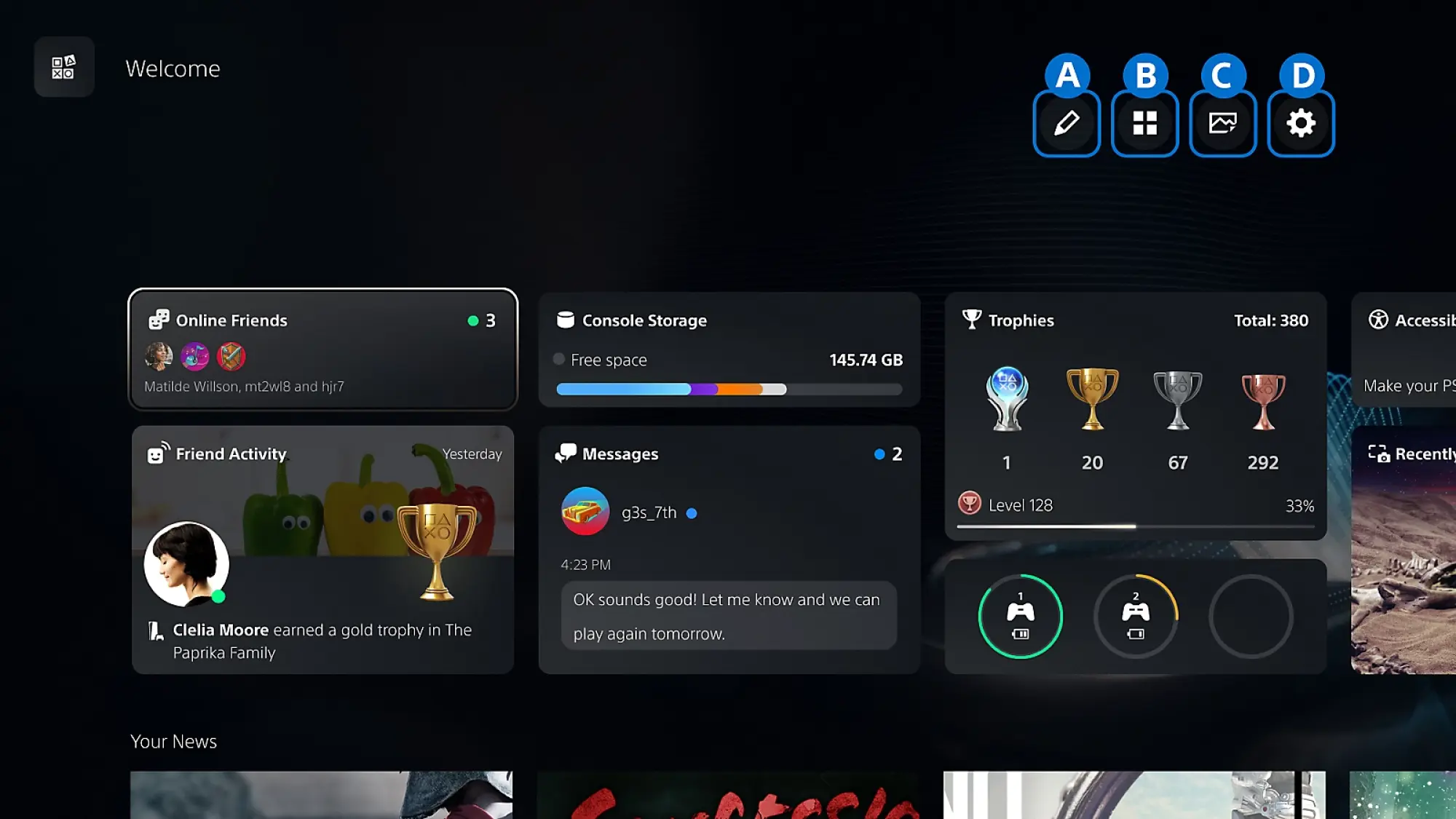
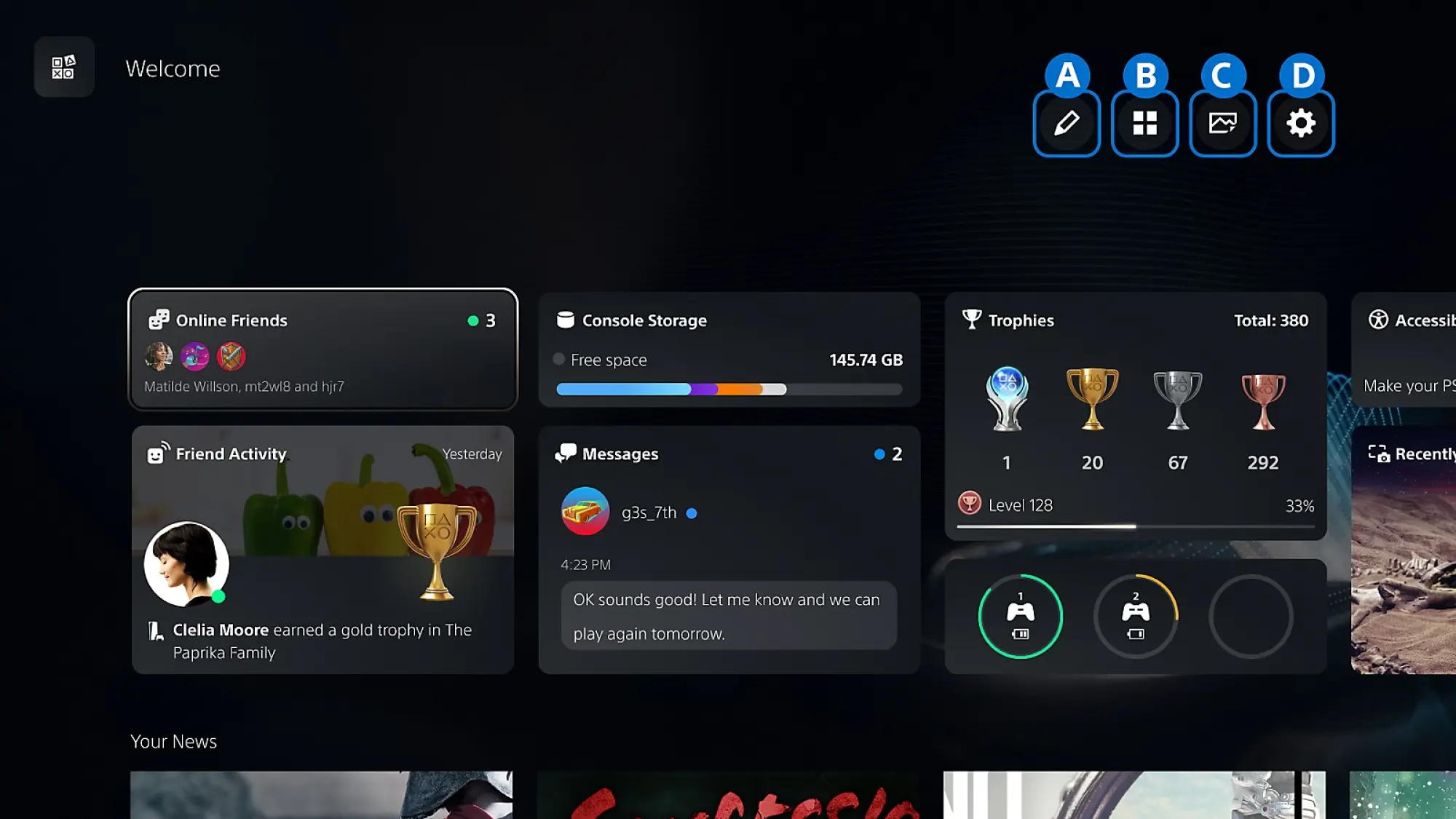
See all those widgets at the bottom of the Welcome Hub when you turn your PS5 on? Did you know that you can actually customize them? It’s especially handy if you’re like me and can’t stand seeing what are essentially ads taking up more than half of your display.
To adjust your PS5 Welcome Hub widgets, simply press X while hovering over the Welcome Hub tile, then navigate to the controls in the top-right corner. Here, you can select Presets to choose from various options set up by Sony, or select Edit Widgets to toggle specific widgets on and off. Personally, I disabled the News, PlayStation Plus, Wishlist, and PlayStation Store widgets, since they’re pretty much only there to sell you things.
Once you’re done selecting the widgets you want to see, before leaving Welcome Hub setup, navigate to the Settings cog and choose if you want to enable the carousel-like Large Layout, where you want notifications (Temporary Widgets) to show up, and if you want your widgets to match your broader System Appearance settings (more on that later). If you have the News widget active, you can also customize which games show news here.
Finally, to the left of the Settings cog, you can choose a background for the Welcome Hub, picking from options either prepared by Sony, bundled with certain games you own, or pulled from your Media Gallery.
Turn on your PS5’s surround sound and connect Bluetooth headphones
Your PS5 can do more than basic stereo sound, even if you don’t own a physical surround sound setup. That’s thanks to the power of various virtual surround sound codecs, which come baked into the console. To turn these on, head over to Settings > Sound > Audio Output > Audio Format (Priority). Here, you can choose between Linear PCM, Dolby Atmos, Dolby Audio, and DTS. Not all of these options support virtual surround sound, and I’ll admit I’m not enough of an audiophile to know the best one for every setup, but because it supports height data, Dolby Atmos has been the most versatile pick for my soundbar.
Alternatively, you can also use Sony’s own 3D Audio technology by selecting 3D Audio (TV) or 3D Audio (Headphones) from the sidebar. Personally, I haven’t found the results here to be as rich as Dolby Atmos, but that makes sense. These are built for gamers using TV speakers or headphones, so they aren’t the best option if you’ve got a soundbar or external speaker setup. Still, they’re worth trying out if you listen over your TV’s internal speakers or via a headset. Note that only Sony’s own headsets will connect to the console wirelessly by themselves, but there are ways around that, which my colleague Jake Peterson has written about here.
Make rumble more responsive on the PS5
Sony’s so proud of the rumble and haptics in the PS5 controller that it updated its classic DualShock branding to DualSense alongside the controller’s launch. But weirdly, the haptics aren’t as strong as they could be out of the box. That’s because the PS5 controller has a microphone built-in, and Sony has intentionally weakened its haptics to prevent interference from being picked up on the mic.
If you’re like me, and you barely use the microphone in your controller, there are two ways to fix that. The first is more temporary, and simply involves pressing the clear button above the microphone icon on your controller to mute it, which will strengthen the haptics until you turn it back on. It’ll also display an orange light while the mic is off.
The second doesn’t require you to manually flip your mic on and off, and will get rid of that orange light. You can enable it by toggling on Mute under Settings > Sound > Microphone > Microphone Status When Logged In, but know that you’ll need to toggle this back to On if you need to use the microphone again.
What do you think so far?
Turn off (or reduce) the PS5’s DualSense trigger haptics

Credit: Michelle Ehrhardt
Sony might be proud of the haptics in its brand new controller, but personally, I think they’re a little bit too strong, especially when it comes to the triggers. With the PS5, Sony introduced its new adaptive triggers, which add resistance to trigger pulls in certain games for heightened realism. But while having the controller fight back against you the first time you try to tighten a bowstring in a Horizon game might be a fun novelty, it gets tiring pretty quick.
Luckily, you can customize this, as well as fine tune any of the other haptics. Under Settings > Accessories > Controller (General), select Trigger Effect Intensity to choose how strong the adaptive trigger resistance should be, and select Vibration Intensity to set the strength for more general rumble. Personally, I have Vibration Intensity set to Strong, and Trigger Effect Intensity turned off.
Install SSD or use HDD for PS4 games or offloaded PS5 games
The PS5 comes with a good amount of storage by default, and while amounts differ depending on your model, it’s usually enough for five to seven AAA games. But if you want more storage, you can actually install a supported M.2 SSD into your PS5 without much hassle. Sony has exact installation instructions here, plus a guide on determining if an SSD is supported. While specific steps will vary depending on your PS5 model and which SSD you get, you generally only need a screwdriver to complete installation. Even better? The new SSD won’t replace your existing internal storage, so you can use them in tandem.
To install games to your SSD once it’s installed, you’ll first need to change your Installation Location to M.2 SSD under Settings > Storage. Then, simply install a game as usual. If you want to move games that are already installed on your PS5’s internal storage to your SSD, head to your Game Library, highlight the games you want to move, press the Options button, and select Move Games and Apps. If you’re also using expanded USB storage, select Movable to M.2 SSD Storage after this step.
Speaking of USB storage, the PS5 also supports external USB drives. You can see requirements here—not every device is guaranteed to work. Also note that while you can play PS4 games directly off USB storage, PS5 games need to be installed to an SSD to work. However, you can keep a PS5 game offloaded to USB storage and then load it onto either your console’s SSD or your custom M.2 SSD when you’re ready to play, bypassing the need for a download.
Quickly customize game difficulty, subtitles, and graphics on the PS5
The first thing I do whenever I boot up a new game isn’t start my adventure, but dive deep into the settings to see what I can customize. It’s not the best first impression, but there’s usually a switch I can flip that will make the game play much better for me, especially if it ups the frame rate. Luckily, Sony’s aware of this optimization sickness I suffer from, and is doing its best to help.
Under Settings > Saved Data and Game/App Settings > Game Presets, you can set a number of preferences for how your games should play ahead of time, and your PS5 will automatically configure them for you when you boot up a supported game. It’s not a fully robust selection, since Sony can’t predict every game’s needs, but you can choose a preferred difficulty here, whether the game should be played in first-person or third-person (if both are available), which language you’d like to play in, whether subtitles should be turned on, your online multiplayer permissions, and most crucially for me, whether your games prefer Performance Mode or Quality Mode (called Resolution Mode here). Finally, I can set my PS5 games to default to smooth performance over the prettiest visuals.
Get hints from the PS5’s Game Help feature
Let’s say you’re struggling in a game, but you don’t want to bother to pull up an internet browser and look up a walkthrough. This is where the PS5’s Game Help feature comes in. It’s not available for every game, but if you’re stuck, it’s worth looking for. Just press the PlayStation logo button on your controller, and if it’s there, select the Game Help card. From here, your PS5 will suggest hints towards specific goals based on where you are in your game, and might even show you videos from other players. It’ll also warn you if you’re about to see spoilers, so you can back out before looking at a hint.
It’s fairly self explanatory, and while the hints aren’t always detailed enough for my needs, I do appreciate that Game Help also estimates how long it’ll take you to complete certain goals, as well as show you your progress towards them. As a busy 30-something, it’s a great way to know how long my play sessions might be ahead of time.
As for where Game Help gets its gameplay videos, it’s from players who’ve opted in to share them. To start sending videos to Game Help, head to Settings > Captures and Broadcasts > Auto-captures > Community Game Help. Select On next to Participate, and Sony may occasionally look at your gameplay and upload select sections from it to its servers to serve as a guide towards other players. Voice or party chat audio won’t be recorded and uploaded videos won’t take up space on your console, but depending on the game, usernames or text-based chat messages shown in gameplay footage might be shared.
Change your PS5 console’s theme to a retro style
Credit: Sony
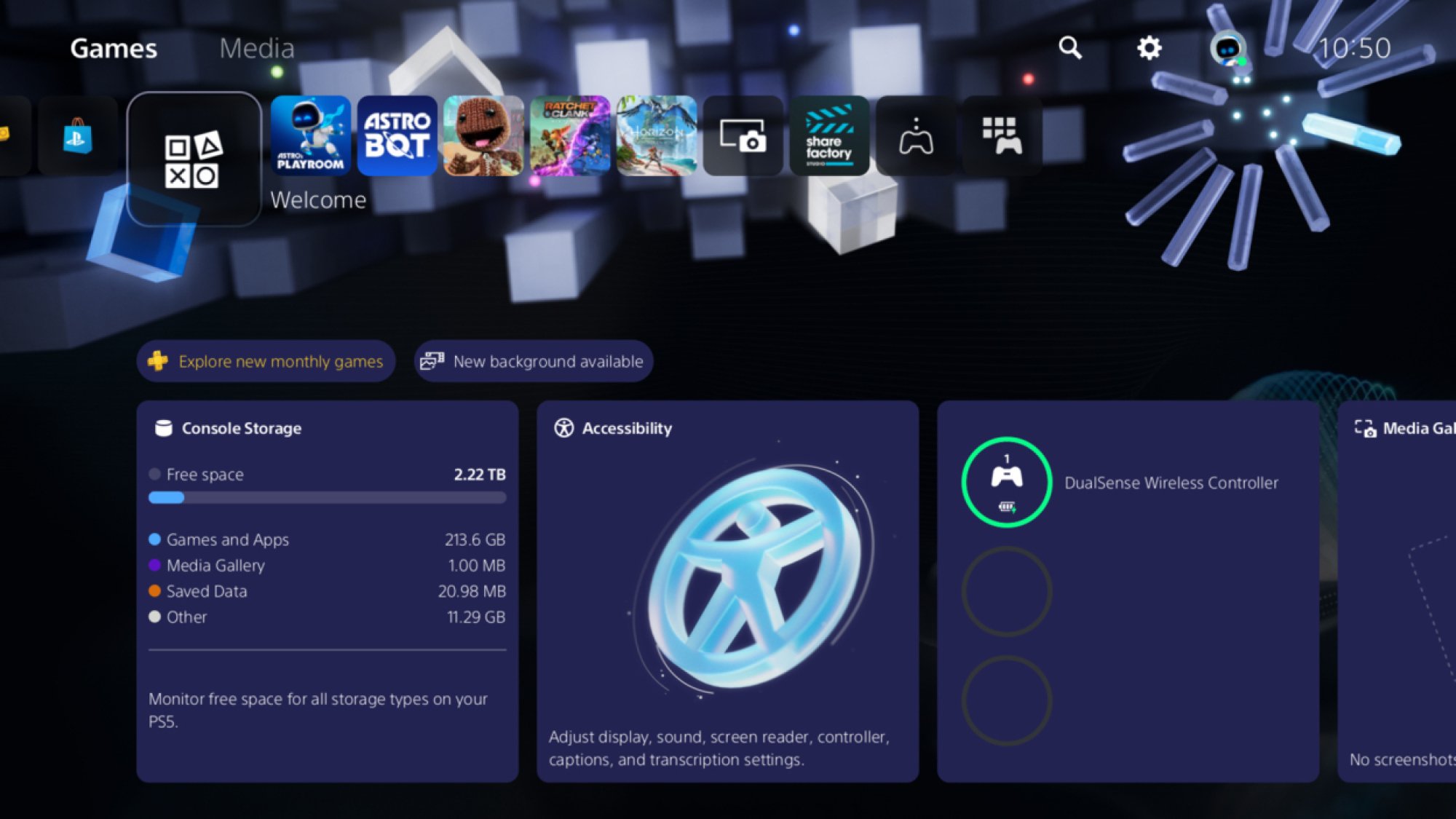
Finally, this one’s just for fun. Back in 2024, Sony introduced themes to the PS5 home screen that mimicked the look of the PS1, PS2, PS3, and PS4. These left the system shortly afterwards, but came back for good in April of last year. To try them out, head to Settings > System > Appearance > Appearance and Sound and choose a console you’d like to mimic. Personally, I like the PS2 theme, but I’ve gone for the PS3 look for now, because my husband has a lot of fondness for that console’s XMB menu. Now, if only Sony would add even more themes to the list. Maybe an Astro Bot look?