
We may earn a commission from links on this page.
The Apple Vision Pro is a beast of a machine. By putting an M5 chip under the hood—a 3-nanometer processor with a 10-core CPU, 10-core GPU, and 16-core Neural Engine— Apple leapfrogged the M3 and M4 entirely, putting more raw power on your face than most people have on their desks. But like any high-performance machine, you have to tune it up and drive it right to get the most out of what’s under the hood. Whether you’ve had yours since launch or just unboxed it, these ten hacks will help you get more out of your Apple Vision Pro. Some are simple adjustments, some are deeper dives, but all of them are worth your time.
Access the Vision Pro’s “hidden” settings
Apple’s going for a specific aesthetic with the Vision Pro UI, so there aren’t as many things to customize in the “settings” menu as you might like, but there are a lot of useful adjustments buried in the Accessibility menu. These settings are designed for users with dexterity, visual, or hearing impairments, but anyone might prefer a zoom feature or an modification to the click speed of the digital crown.
Here’s what I’ve changed in my Vision Pro’s via the accessibility menu:
You might be interested in the same settings, or others presented here, so take a peek into the Accessibility menu to see what works for you. Pro tip: You can triple-click the digital crown to toggle accessibility features on and off instantly.
The latest update to VisionOS added spatial widgets so you can pin information in places it makes the most sense—e.g. put a timer next to your stove for cooking, or the weather and news right by the front door. But if you have any Matter-compatible smart home devices, you can take widgets to the next level with Apple Home. This app lets you pin controls for things like your air conditioner and lighting wherever you like, so you can stick the “night mode” button above your bed and turn everything off with a click when the day is over. If you want to take it further, download Widgetsmith and customize the appearance of smart home controls. Once you pin a widget, it will stay there until you move it or delete it, even when you restart.
Use “connect to server” for unlimited storage
With visionOS, you can connect to a local server on your network, like your PC or Mac, or cloud storage providers, and access files without saving them to your headset. It’s a great way to work with large files without filling up your Vision Pro’s storage—especially if you opted for the base 256GB. To set it up, you need to allow sharing on the remote computer, then go to “Files” within the Vision Pro, enter your server’s host name or network address, then choose “Connect.” Depending on the server, you can connect as a guest, or you can enter your username and password, and you’re good to go.
Use settings and mirroring to securely share the Vision Pro experience
One of the biggest downsides to AR and VR is the inability to say “take a look at this!” and show your friend. The Apple Vision Pro’s Guest User mode isn’t quite that, but it’s at least an easy and quick way to hand around your headset. Here’s how it works:
-
Go to Control Center.
-
Pinch “Guest User.”
-
Hand your headset over and the Vision Pro will run a quick set-up and calibration, then open on what you were looking at, while protecting your private data.
-
When you put the headset back on, your original calibration will return.
If you don’t want to fully share your headset, you can still share your view. AirPlay Mirroring lets others see what you’re seeing on their phones or other devices. You can beam your view to any nearby iPad, Mac, or AirPlay-compatible TV that shares a wifi network with your Vision Pro. Here’s how it works:
-
On your headset, go to Control Center and select the “Mirror My View” icon (it looks like two overlapping squares).
-
You should see a list of any compatible devices on your network. Choose the one you want to stream to.
-
If you don’t see a device, you may need to turn on AirPlay Receiver (found in System Settings > General > AirDrop & Handoff on macOS and within the Apple Vision Pro app on iOS).
Use “Gaussian splats” to create 3D virtual spaces you can walk around in
One of the standout features of the Vision Pro is the device’s ability to instantly upscale and alter existing 2D photos into spatial 3D images. You just open the photo gallery, select a picture, and click the “spatial” and/or immersion icons and it instantly gives your pics depth. But that’s only the first level of the 3D you can achieve.
Third-party apps like Spatial Media Toolkit and Spatial Video Studio let you control parameters like depth intensity, crop for the best 3D effect, and save in formats that can be viewed outside of the Vision Pro. That includes anaglyph, so you can view pictures with those old 3D glasses; side-by-side 3D, so you can view them on VR headsets or 3D TVs; and “wiggle” videos that can be viewed by anyone by moving their device slightly, like so:

Credit: Stephen Johnson
But if you want to go even deeper, the Apple Vision Pro is an amazing tool for viewing and creating Gaussian splats. This cutting edge tech creates 3D models by stretching, rotating, and positioning millions of tiny, colored, and transparent 3D “blobs” (Gaussians). While spatial photos add AI-assisted depth, “splats” allow you to capture 3D versions of real objects, save them, and walk around them. You can also scan a 3D space and walk around inside it.
Gaussian splats capture lighting really well, but add a weird, surreal “blobbiness” to physical objects (the tech isn’t fully in place). But the lighting and reflections are evocative in a way that’s hard to describe. Gaussian splats of familiar places feel like walking into hazy memories. If your parents had this, you could hang out in a digital replica of your childhood bedroom. If you scan your own children with this, you’ll have weird, blobby digital child who will never grow up. It’s not super hard to do, either. You can use an app like Scaniverse or Polycam on your phone to scan a room or object in different ways, then you can export it to your Vision Pro and experience it in 3D through the same apps on your Vision Pro. Bonus: Polycam lets you explore captures from users all over the world, including large-scale scans of things like cathedrals.
Use your Vision Pro as a gaming device
Gaming has never been the focus of the Vision Pro—a shame, since it’s such a powerful machine—but that seems to be changing. The most recent update to visionOS 26.4 introduced NVIDIA CloudXR 6.0, a native streaming framework that allows the headset to act as more of a monitor, while another computer handles the number crunching.
What do you think so far?
The first high-profile games playable through the new framework are iRacing and X-Plane 12. I don’t have a PC, so I wasn’t able to test this one out, but here are the the instructions from NVIDIA on how to get it going.
You aren’t totally locked out of a high-end gaming if you’re Mac user, though. visionOS now supports NVIDIA GeForce NOW so you can stream games directly from NVIDIA’s data centers. The bad news: it’s going to cost a subscription fee for the best stuff. Here’s how it works:
-
Pair a Bluetooth game controller to your Apple Vision Pro.
-
Open Safari on your Vision Pro and go to play.geforcenow.com.
-
You should be able to play any games you own on Steam that are also on NVIDIA’s platform.
-
The free subscription gives you hour blocks of playtime after waiting in the queue. If you spring for the “Ultimate tier subscription” for $19.99 a month, you get to the front of the line, and you’ll unlock the Vision Pro’s 4K/90 FPS cloud mode, which gives you better performance than most consoles without a single wire.
Those are the official gaming options. If you want to be a hacker and walk outside Apple’s cultivated garden, you can play streamed OpenVR games from your gaming computer to your Vision Pro with ALVR. But it’s not for the faint-of-heart. Running ALVR requires specific network and software configurations, and a measure of technical knowledge. If you want to give it a shot, here are the official instructions for setting up the app on your PC.
Keep Vision Pro awake with a post-it note
This hack takes no technical ability at all, and it’s adorably janky. The Apple Vision Pro is designed to go into a sleep mode the moment you take it off, but if there’s some reason you’d rather the display stay on, you can defeat the auto-sleep sensors with a simple Post-it note. Slide it over your eye while the headset is off, then you can keep your headset on while it’s supposed to be sleeping, like so:
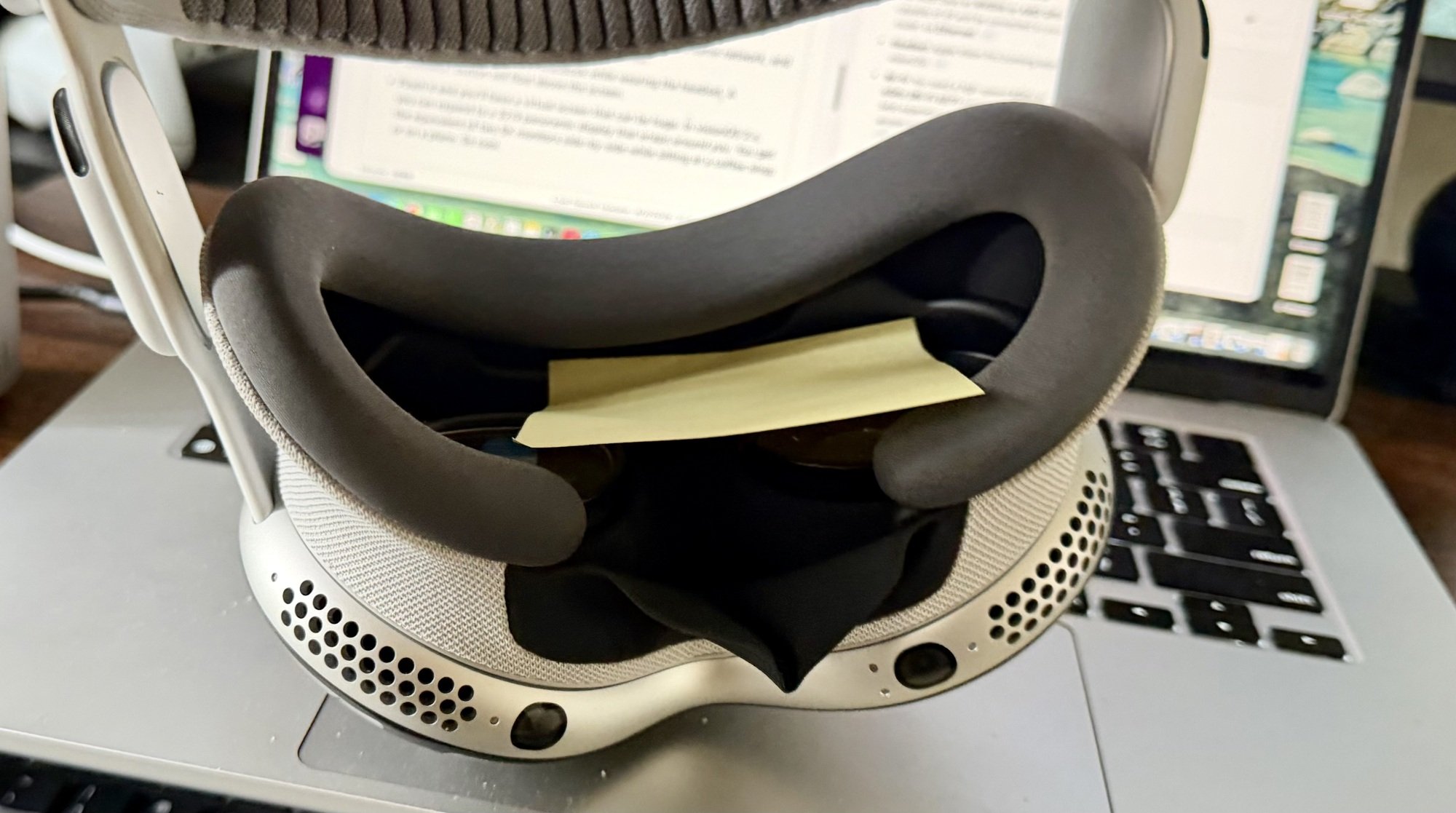
Credit: Stephen Johnson
This actually has some uses. VisionOS often pauses active tasks like file transfers when it’s sleeping, so if you’re transferring a huge file, this could keep it going while you’re headset-less. Also: if you’re running something with a delicate connection, like ALVR mentioned above, this would theoretically make it more likely you keep your connection.
Use physical buttons to force quit if your Vision Pro is unresponsive
If a Vision Pro app becomes unresponsive, you can force quit with the physical buttons. Unlike clicking the “X” to close out an app, force quitting kills the process that’s running completely. Here’s how it works:
-
Press and hold both the digital crown and the top button.
-
Wait for the menu of open apps to appear.
-
Click the app you want to kill.
Create an ultrawide virtual display for your MacBook
You can turn your MacBook into a wrap-around workstation with infinite screen real estate, and it’s crazy easy:
-
Make sure your computer and Vision Pro are both on the same network, and that both have bluetooth and keychains enabled.
-
Then just look at your open MacBook while wearing the headset. A “Connect” button will float above the screen.
-
Pinch it, and you’ll have a virtual screen that can be huge. You can expand to a 32:9 panoramic display that wraps around you. You get the equivalent of two 5K monitors side-by-side while sitting at a coffee shop or on a plane. So cool.
Hunt for hidden easter eggs in Vision Pro environments
The Vision Pro’s environments are way more than static backdrops. They’re highly detailed, animated vision and soundscapes filled with small details and, supposedly, mysterious rare encounters. There’s a kind of mythology about some of these events, because they’re hard to capture, so anyone can say they saw or heard anything—like a roadrunner in White Sands or gunshots or Bigfoot in Mount Hood. Those are dubious, but there are some confirmed, or at least plausible, environment easter eggs that suggest you might find something:
-
Haleakalā: if you yell loud enough in this environment, you can hear an echo. This one is confirmed.
-
Mount Hood (Dynamic Weather): If it is raining in your actual physical location, the Mount Hood environment will often mirror those conditions. Users have reported seeing subtle raindrops hitting the “glass” of their open app windows as well.
-
Keynote’s hidden environment: If you open the “Keynote” app in your Vision Pro and open a presentation, one of your options will be “rehearse.” You’ll have two choice, a boardroom and a theater. The theater is an exact replica of the Steve Jobs Theater. This is confirmed too.